

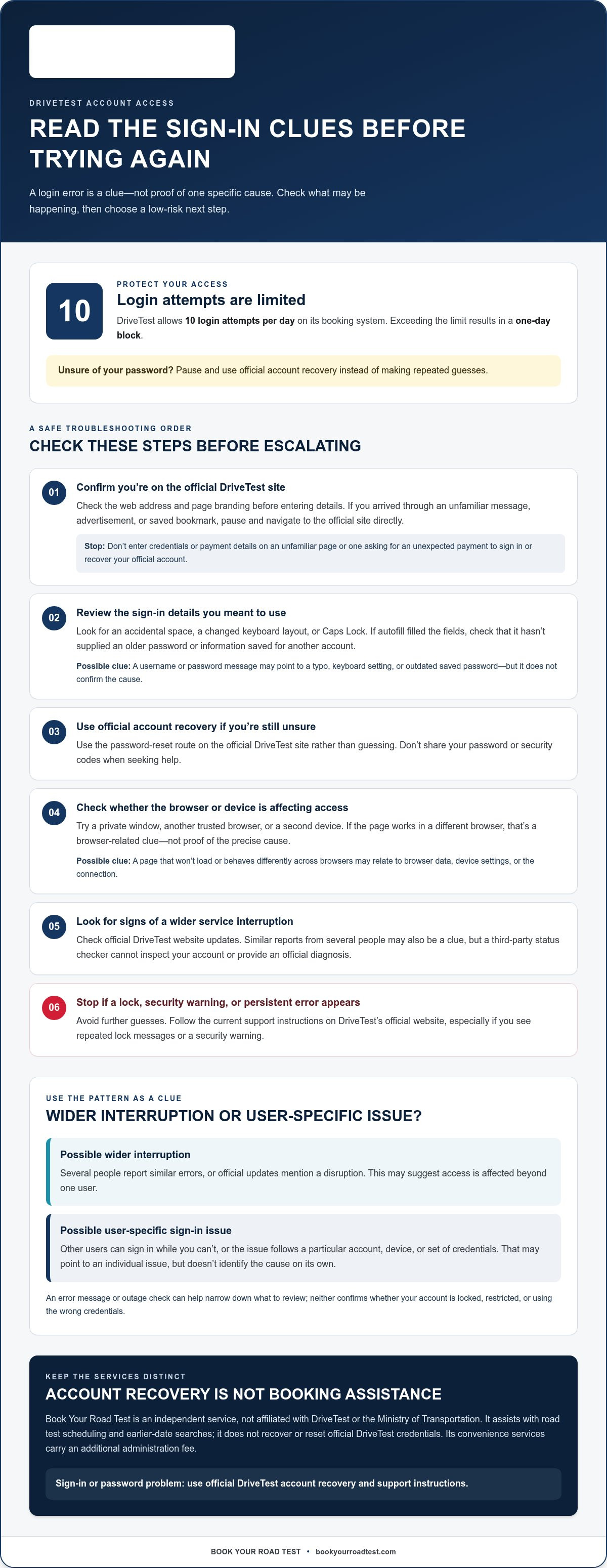
A failed DriveTest sign-in doesn’t always mean your password is wrong. If you’re dealing with drivetest account login issues, the cause could be a typo, browser settings, a temporary service disruption, or an account-access restriction. Repeated guesses can make things worse: DriveTest allows 10 login attempts per day on its booking system, and exceeding that limit results in a one-day block.
It’s frustrating when an unclear error message gives you no clue what to fix, especially if you’re unsure which organization manages your account. Start by identifying the likely cause before trying again.
This guide explains how to check your credentials, browser and connection, look for service interruptions, and decide when to use official DriveTest support. You’ll also learn how to avoid unnecessary login attempts while troubleshooting.
Book Your Road Test is an independent service, not affiliated with DriveTest or the Ministry of Transportation. It provides road test scheduling assistance, but it doesn’t reset official account credentials. Its convenience services carry an additional administration fee.
Key Takeaways
- Use the error message and results from another browser as clues to narrow down drivetest account login issues, not as a definitive diagnosis.
- Follow a low-risk troubleshooting order: verify you’re on the official site, check your sign-in details, then try credential recovery or browser checks.
- Stop if you see a security warning, repeated lock messages, or persistent errors. Follow the current support instructions on DriveTest’s official website.
- For a sign-in or password problem, use official account recovery. Booking assistance is a separate scheduling service, not a way to reset credentials.
- Book Your Road Test is an independent service unaffiliated with DriveTest or the Ministry of Transportation. Its convenience services carry an additional administration fee.
DriveTest account login issues: identify what is going wrong
A failed sign-in doesn’t automatically mean your account is lost. Login trouble means you can’t access an account or online service at that moment; it doesn’t show that your road test booking or driver’s licence is invalid. Possible causes include incorrect credentials, an old password saved in your browser, a browser or device problem, a DriveTest service interruption, or an account-access issue.
Separate the sign-in problem from what you were trying to do next. Being unable to open the booking system is different from seeing no suitable appointment times after signing in, or from a payment or booking transaction that doesn’t complete. A driver’s licence is a credential with its own purpose and rules, as outlined in this general overview of Driver's license. Trouble reaching an online account doesn’t establish a change to your licensing status.
What a DriveTest login error can, and cannot, tell you
An error message is a clue, not proof of one specific cause. A username or password message may point to a typo, a stale saved password, or an autofill mismatch. A page that won’t load could relate to the browser, device, connection, or a service interruption. Note the exact wording and what you were doing when it appeared. Don’t share your password or security codes when seeking help.
A service outage affects access beyond one user, while a user-specific sign-in issue follows a particular account, device, or set of credentials. This distinction can help you decide whether to check for a broader interruption or review your own sign-in details, but an error message alone may not settle the question. DriveTest’s online booking system allows 10 login attempts per day; exceeding the limit results in a one-day block. Avoid repeated guesses if you’re unsure of your password.
First check: which account or service are you trying to access?
Before entering any details, confirm that you’re on the official DriveTest website and using its account or booking service. If you reached a sign-in page through an unfamiliar message, advertisement, or saved bookmark, pause and navigate to the official site directly. Check the web address and page branding before proceeding.
Independent booking assistance is separate from an official DriveTest account. Book Your Road Test is an independent third-party service, not affiliated with DriveTest or the Ministry of Transportation. It assists with road test scheduling and earlier-date searches, but it doesn’t recover or reset official DriveTest credentials. Its convenience services carry an additional administration fee.
Stop if a page looks unfamiliar or asks for an unexpected payment just to sign in or recover your official account. Don’t enter credentials or payment details until you’ve confirmed which service you’re using. Identifying the right account first can prevent you from troubleshooting the wrong system.
Check whether the problem is your credentials, browser, or a service interruption
Look for a pattern before changing several settings at once. A failed sign-in can result from a mistyped credential, saved information that no longer matches, a browser or device issue, a wider service interruption, or an account-access restriction. The signs below are clues, not diagnoses.
Symptom: A message says the username or password is incorrect. Possible clue: A typo, keyboard setting, or outdated saved password.
Symptom: The page won’t load or behaves differently across browsers. Possible clue: Browser data, device settings, or connection trouble.
Symptom: Several people report similar errors, or official updates mention disruption. Possible clue: A service interruption affecting multiple users.
Symptom: A lock or security message appears. Possible clue: An account-access restriction that needs careful handling.
An outage check can suggest a wider interruption, but it can’t confirm whether your individual account is locked, restricted, or using the wrong credentials. A third-party status checker may offer a quick indication, but it doesn’t inspect your account or provide an official diagnosis. Give greater weight to service updates on the official DriveTest website. If other users can sign in while you can’t, that may point towards an individual issue, but it doesn’t identify the cause on its own.
Signs the username or password may be the issue
Check the details before trying again. Look for an accidental space, a changed keyboard layout, or a character entered with Caps Lock on. If your browser fills in the sign-in fields, compare the entries with the details you intend to use. Autofill may supply an older password or information saved for another account. If you’re still unsure, use the password-reset route on the official DriveTest site rather than guessing. Stop if a lock message appears, and don’t keep making rapid attempts.
Signs the browser or service may be causing the error
Try a private window to see whether saved browser data or an extension is interfering. If the page works there, that’s a browser-related clue, not proof of the precise cause. You can also compare results in another trusted browser or on a second device. DriveTest’s online road test booking system supports the last two years’ versions of Chrome, Microsoft Edge, Safari, and Firefox, and requires TLS 1.2 or higher for secure online services.
If the same error appears on different devices or networks, a local browser issue becomes less likely, though it isn’t ruled out. Check official DriveTest updates before making further changes. If you can sign in but are struggling to find a suitable test time, independent road test booking assistance is a separate scheduling option. Book Your Road Test is unaffiliated with DriveTest and the Ministry of Transportation, and
Troubleshoot DriveTest account access safely, step by step
Work through one check at a time. This keeps each step easy to undo and helps you see whether the problem changes, instead of altering several settings and losing track of what helped. If you see a security warning or a message that your account is locked, stop and follow the official instructions rather than continuing to test sign-in.
- Verify the official site. Open DriveTest’s website directly rather than using a link from an unexpected email, text, or search advertisement. Confirm you’re on the official site before entering account information.
- Check your sign-in details. Review the username and password for spelling, spaces, keyboard settings, and autofill mistakes. Check that your browser hasn’t filled in an old password or username.
- Reset uncertain credentials. If you can’t confirm the password, use the account-recovery route reached through the official DriveTest site. Follow the instructions shown there; don’t rely on a reset link from an unsolicited message.
- Test the browser or device. Try a private window or another current, trusted browser. If the problem persists, compare using another device or network, changing only one thing at a time.
- Seek official help if access still fails. Use the current support and account-recovery instructions published on DriveTest’s official website. Stop sooner if you see a security warning, suspect someone else has accessed the account, or receive a lock message.
Reset credentials and protect account information
Use only the password-recovery process reached from the official DriveTest site. Choose a unique password that you don’t reuse for other accounts, and never send your password or a one-time code by email or message. Ignore unexpected reset links, even if they appear urgent. Open the official site yourself and start recovery there. Use official account-recovery pages, and never share passwords or one-time codes.
Isolate browser, device, and connection problems
If your details appear correct, test one browser change at a time. A private window can help identify interference from stored site data; clearing DriveTest site data is another reversible check, though you may need to sign in again elsewhere. Check autofill before retrying, since it can silently insert an old password. Avoid entering account information on public computers or unsecured networks.
If these checks don’t resolve drivetest account login issues, don’t keep repeating the same attempts. Account recovery and official support are separate from appointment scheduling. For scheduling assistance, Book Your Road Test is an independent service, unaffiliated with DriveTest and the Ministry of Transportation. Its road test booking assistance is optional and carries an additional administration fee; it doesn’t reset official account credentials.
What to do if DriveTest login troubleshooting fails
Stop troubleshooting if the official site repeatedly says your account is locked, you suspect someone else has accessed it, or the same error persists after basic checks. Continuing to retry can add confusion and make it harder to tell whether the issue has changed. Follow the current account-recovery and support instructions on the official DriveTest website, where you can find the relevant contact details and processes.
Before you seek help, write down the time of the error, its exact wording, what you were trying to do, and the steps you’ve already tried. Note whether the message appeared before or after submitting your sign-in details, and whether you tested another browser. Keep this summary free of passwords, one-time codes, full payment details, and other sensitive information. A clear record can help you explain the problem without exposing your account.
When to contact official DriveTest support
Use only contact options published on DriveTest’s official website. Don’t rely on phone numbers or response-time promises copied from unofficial pages, and don’t assume a third-party booking service can investigate an official account. When you contact DriveTest, share the non-sensitive error details and a short list of checks you completed. Never provide a password or one-time code in response to an unsolicited email, text, or call claiming to be support.
If you suspect unauthorized access, stop using suspicious links or messages and follow the official account-security instructions. Avoid sending screenshots if they show private details. If a screenshot is requested through an official support channel, review it first and remove sensitive information. Keep the original error wording in your notes, but don’t post account information publicly or send it to an unverified address.
When the issue is booking, not account access
Account recovery and finding an earlier appointment are separate tasks. If you can sign in but no suitable test time appears, or you’re trying to move an existing booking, the problem may be scheduling rather than account access. For a general explanation of finding an earlier appointment, see this road test cancellation finder guide. If you’re arranging an M2 test, the M2 road test booking guide covers that booking context.
Book Your Road Test is an independent third-party service, unaffiliated with DriveTest or the Ministry of Transportation. It provides optional scheduling assistance, not a way to unlock an account or reset official credentials. If your account works and you need help with scheduling, explore independent road test booking assistance.
Choose your next step: official account support or independent booking help
Choose your next step based on what you’re trying to do. If you can’t sign in, can’t reset your password, or see a lock or security message, use the account-recovery and support instructions on DriveTest’s official website. If you can sign in but need help with road test scheduling, independent booking assistance is a separate option. It won’t solve drivetest account login issues or change your official account access.
Book Your Road Test is an independent third-party service and is not affiliated with DriveTest or the Ministry of Transportation. This distinction matters: official account recovery belongs with DriveTest, while independent assistance is for scheduling. A booking service or appointment search should not be treated as a way to reset official credentials or bypass a sign-in restriction.
- Can’t access your account? Stay with the official recovery and support process.
- Need help with scheduling? Consider independent assistance as a separate, optional service.
Understand what independent booking assistance does
Independent booking assistance helps with the administrative task of scheduling a road test. It isn’t government licensing, and it doesn’t issue or change a driver’s licence. The Cancellation Finder monitors for newly available appointment openings, which can help with an earlier-date search, but no specific appointment date or outcome is guaranteed. It doesn’t provide a login workaround. Booking and Cancellation Finder services carry an additional administration fee.
Keep the purpose clear. If your immediate problem is a password, account lock, or security alert, return to the official DriveTest site and follow its current instructions. If your account is accessible and your goal is to arrange or search for a test appointment, booking assistance may fit that separate need. You can make that choice without confusing scheduling help with access to the official system.
Make the next move without sharing your credentials
Keep your DriveTest password and any one-time security codes within the official service. Don’t send them to a third party by email, text, or message, and don’t provide them as a shortcut to appointment help. You can choose whether to use scheduling assistance without handing over official sign-in credentials. If you’re uncertain whether a page is official, leave it and navigate to the DriveTest website independently.
If you need account recovery, use DriveTest’s official support instructions. If you want help with scheduling instead, you can Explore independent road test booking assistance. It’s an optional service with an additional administration fee, and it doesn’t recover or reset an official DriveTest account.
Take the next step with confidence
Knowing what you need next can keep a sign-in problem from becoming a scheduling detour. For drivetest account login issues, use DriveTest’s official recovery process and keep your password and security codes private. Once account access is no longer the obstacle, decide whether you want help with the separate task of booking a road test.
Book Your Road Test provides independent third-party scheduling assistance. Its Cancellation Finder monitors for newly available appointments, but it can’t recover or reset an official DriveTest account or promise a particular appointment outcome. The service is not affiliated with DriveTest or the Ministry of Transportation, and its booking and Cancellation Finder services carry an additional administration fee.
If independent scheduling assistance suits your next step, explore road test booking assistance. Keep account recovery and appointment planning separate, and you’ll have a clearer path forward. A login error can be frustrating, but you can take the next step carefully and confidently.
Frequently Asked Questions
Why can’t I log in to my DriveTest account?
Common causes include a mistyped username or password, an outdated saved password, browser trouble, a service interruption, or restricted account access. For drivetest account login issues, notice whether the problem occurs before or after you submit your details. If the sign-in page loads but rejects your credentials, check the information being entered. If the page itself fails to load, the cause may be different. The error is a useful clue, not a definite diagnosis.
How do I reset my DriveTest account password?
Start from the official DriveTest website and follow its current password-recovery instructions. The recovery process may ask for your username or email address and send a reset link, so check the inbox associated with the account, including junk or spam folders. Don’t use a reset link from an unexpected message. If no message arrives or the instructions don’t work, return to DriveTest’s official support guidance rather than trying repeatedly or sharing account details elsewhere.
Can I tell whether DriveTest is down for everyone?
You can look for official service-disruption notices on DriveTest’s website and compare your result with a third-party status checker. If several people report the same problem, that can suggest a wider interruption, but it isn’t confirmation. Status tools can’t inspect your account or explain an error that affects only your sign-in. If official updates don’t mention a disruption, continue with account-specific troubleshooting or follow DriveTest’s support instructions.
What should I do if my DriveTest account is locked?
Stop attempting to sign in and follow the account-access instructions on the official DriveTest website. The booking system allows 10 login attempts per day; exceeding the limit results in a one-day block. Avoid switching between guessed passwords, since repeated attempts won’t clarify the cause. If the lock message continues or you suspect someone else has accessed your account, use DriveTest’s official support guidance and note the message without recording your password.
Is Book Your Road Test the official DriveTest login?
No. Book Your Road Test is an independent third-party scheduling service, not the official DriveTest login, and it isn’t affiliated with DriveTest or the Ministry of Transportation. It assists with road test scheduling and earlier-date searches; it can’t verify or reset official account credentials. Its booking and Cancellation Finder services carry an additional administration fee. Use the official DriveTest website for sign-in and account recovery, and keep your password and security codes private.
Can I book a road test if I cannot access my DriveTest account?
Not being able to sign in may prevent you from using DriveTest’s online booking system directly. Independent booking assistance is a separate scheduling service, but it doesn’t unlock or recover your official account. Book Your Road Test is unaffiliated with DriveTest and the Ministry of Transportation, and If you choose this service, don’t share your official password or one-time security codes.


